
Shopify introduces variant-level publishing for sales channels and catalogues
Shopify now lets you control variant visibility per sales channel and catalog — without deleting the variant itself.
Before this update, merchants had limited options when they wanted to hide only specific variants from certain sales channels or catalogues. In many cases, they had to delete variants entirely, create duplicate products for different markets, or rely on apps and manual workarounds to control variant visibility.
With variant-level publishing, merchants can now keep all variants and their history within a single product while deciding exactly where each variant should appear. This comes in handy when staging upcoming variants before launch, hiding discontinued options without deleting them, restricting region-specific variants like plug types or sizes, offering bulk-quantity variants only to B2B customers, or keeping limited-edition variants exclusive to specific sales channels.
Here’s a quick guide on how to unpublish variants from the product admin or using the bulk editor when managing multiple variants at once.
How to unpublish a variant from the product admin page
- In your Shopify admin, go to Products.
- Open the product that contains variants you would like to unpublish.
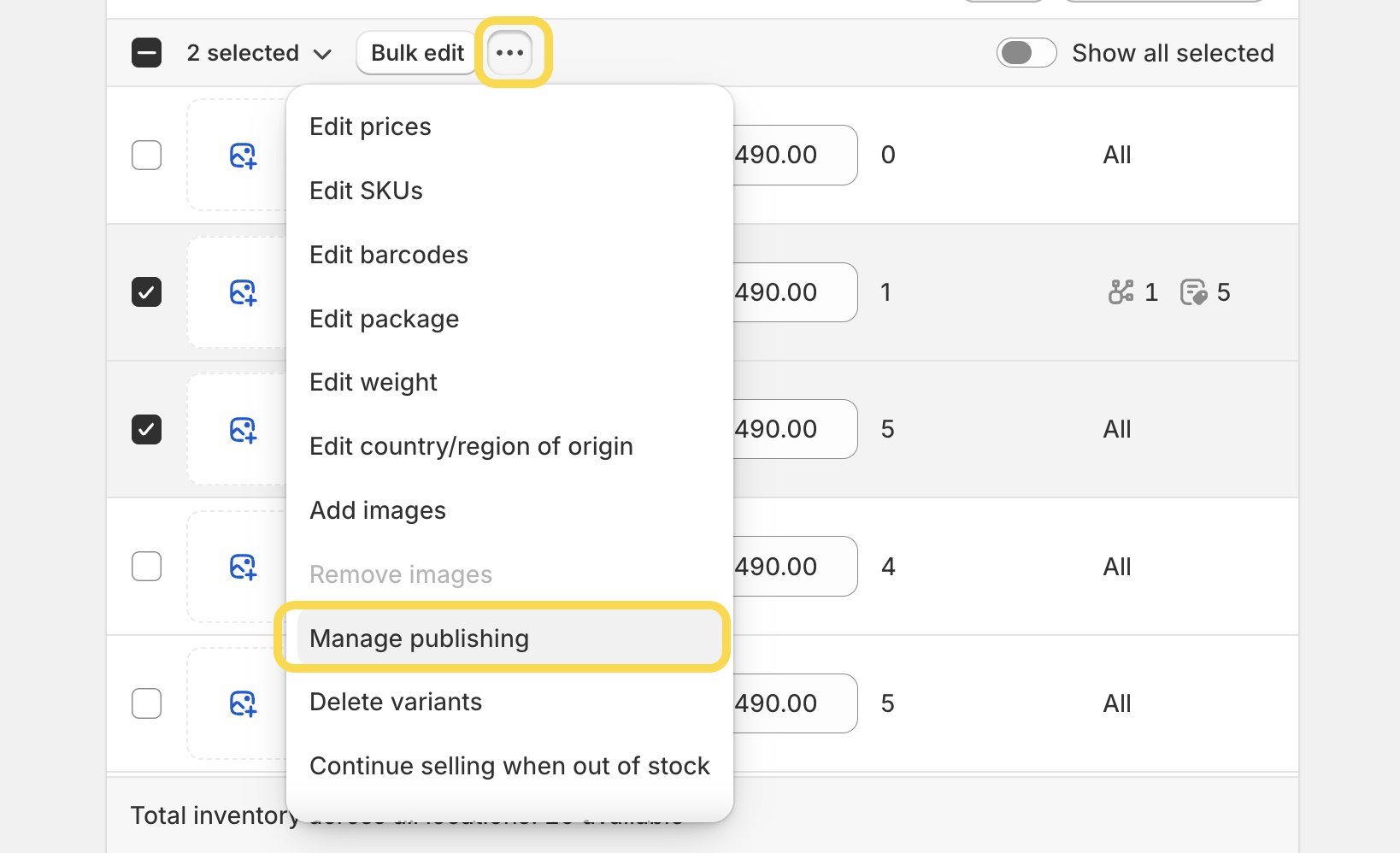
- In the Variants section, select the checkbox next to the variant you want to unpublish, then click the three-dot menu beside the Bulk edit button.
-
Click Manage publishing.
-
Uncheck the sales channels or catalogues where you don’t want the variant to appear.
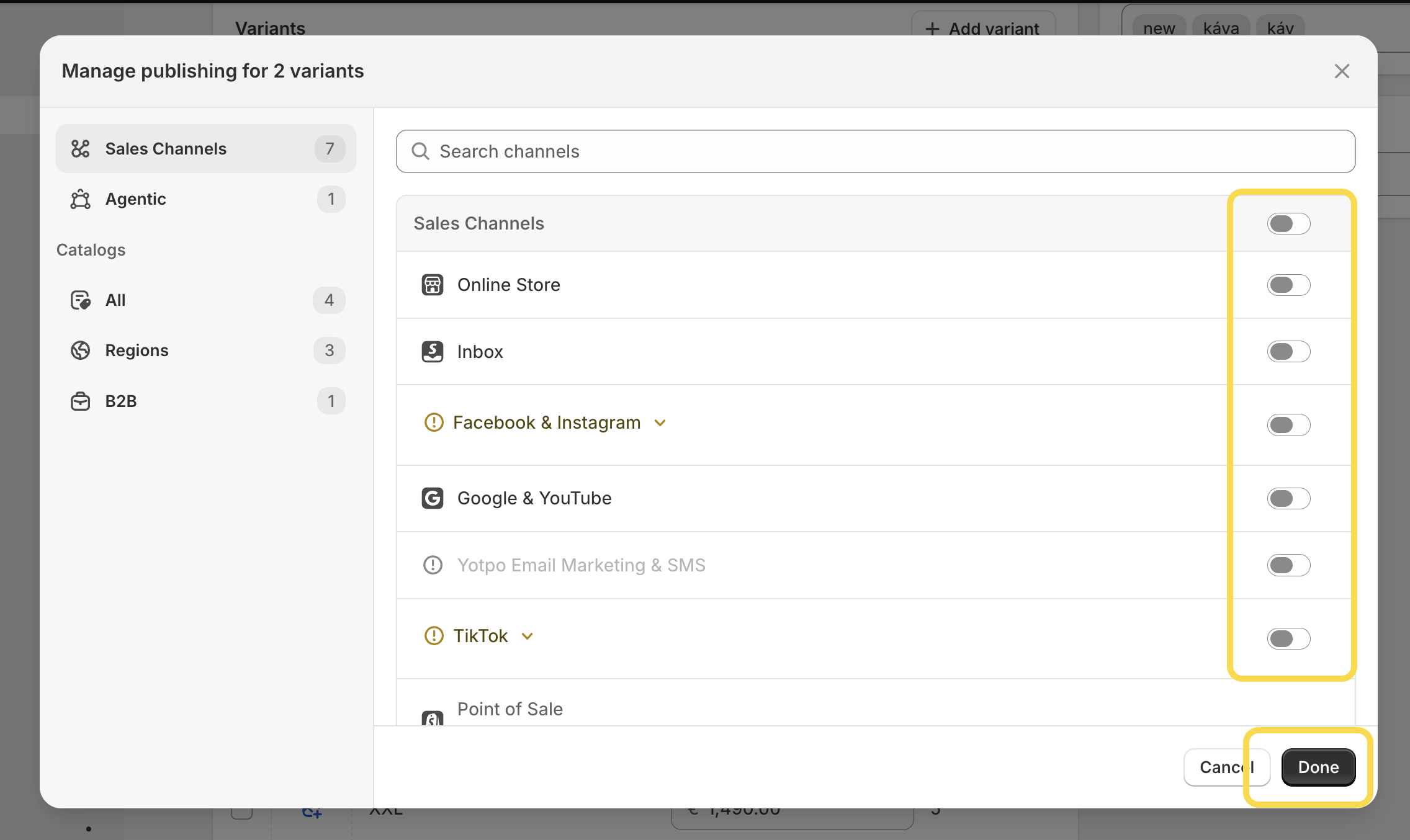
- Click Done, then save the product.
How to unpublish variants using the bulk editor
- In your Shopify admin, go to Products.
- Open the product containing the variants you want to unpublish, then select the variants you’d like to edit.
- Click Bulk edit button.
- Add the Sales channels and catalogues to the editor if they’re not already visible.
-
Remove the sales channels or catalogues where the variants shouldn’t appear.
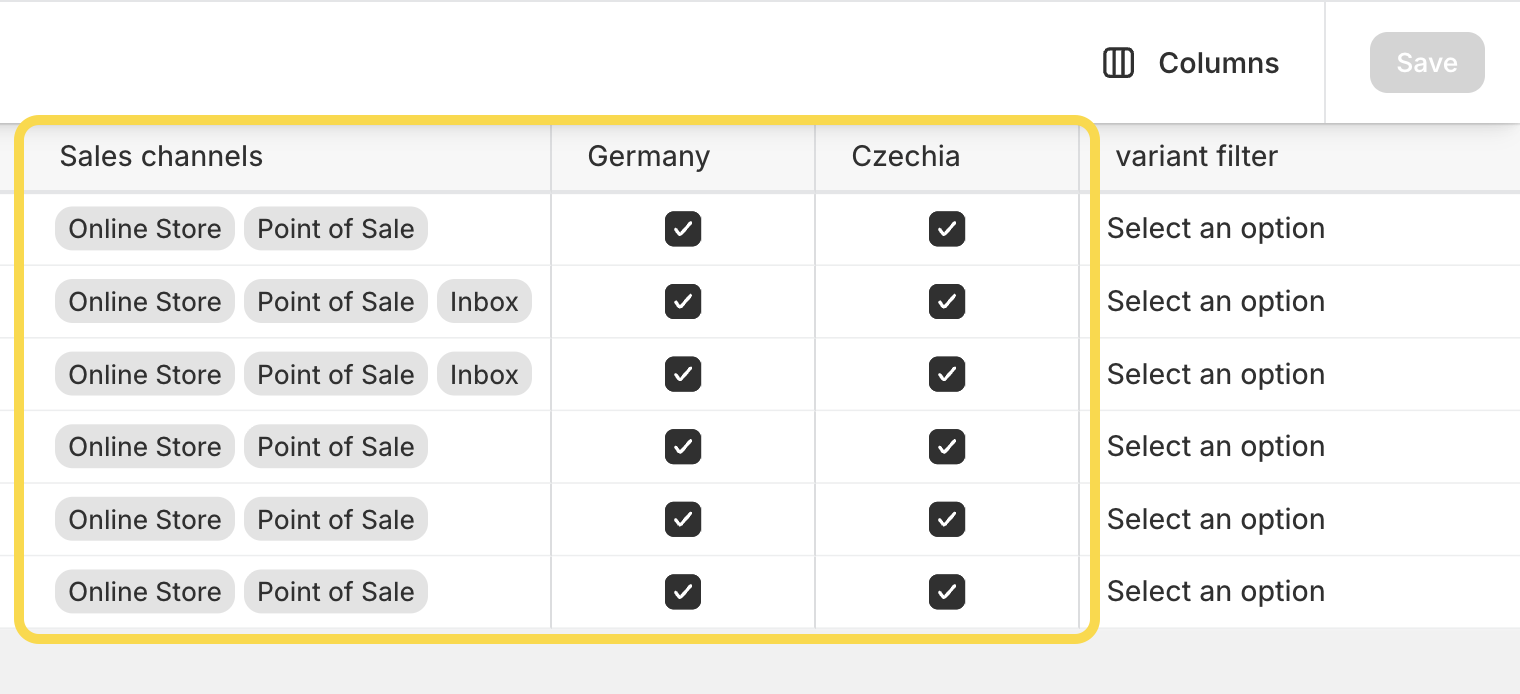
- Click Save.
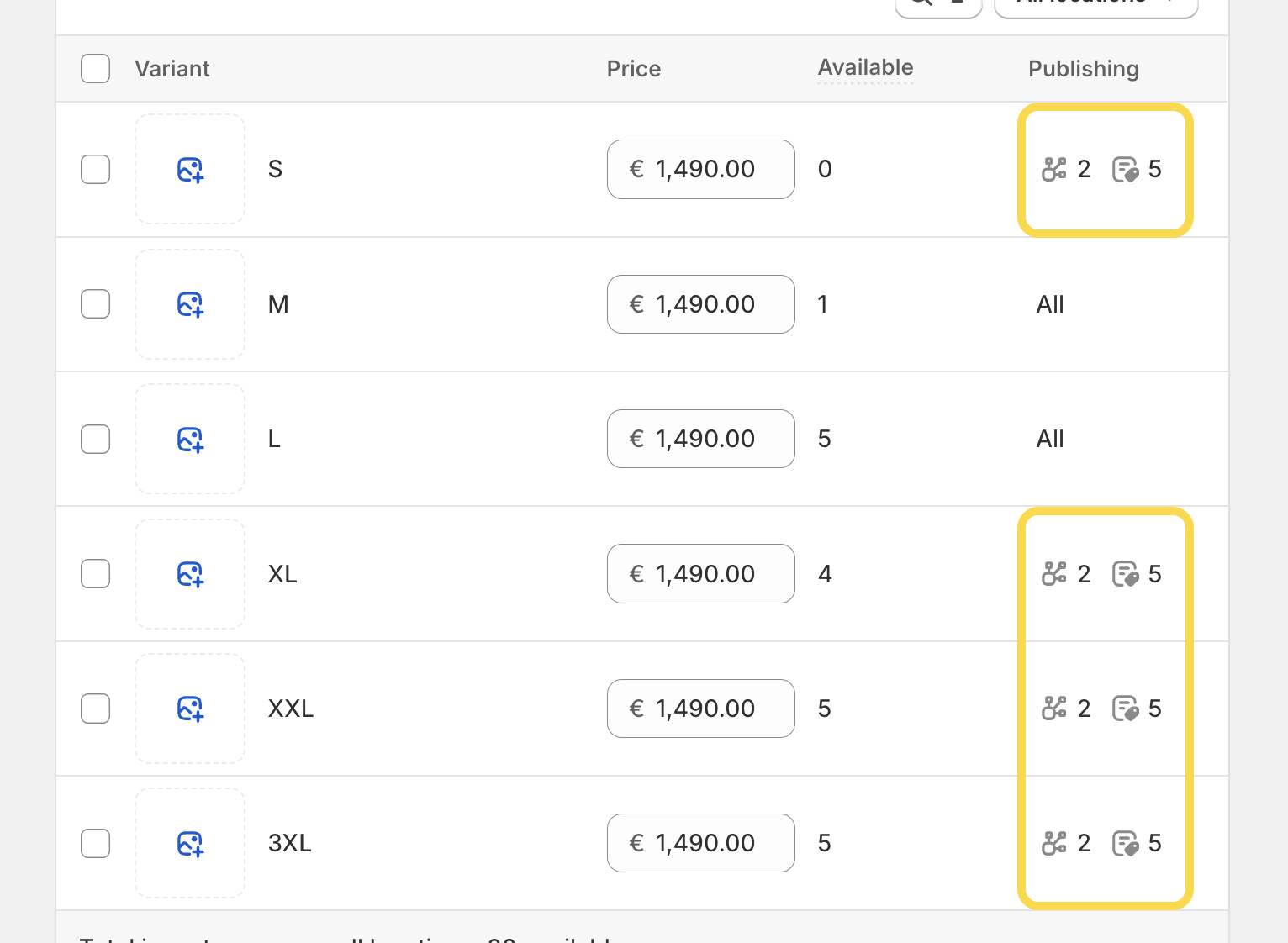
On the product page in the Shopify admin, you can quickly identify whether a variant is published or excluded from specific sales channels and catalogues by checking the publishing icons displayed next to each variant.
A few things to keep in mind
- Publishing and unpublishing product variants isn’t yet available for Shopify POS.
- Product variants are published by default to the same sales channels and catalogues as their active parent product.
- A product is displayed on a sales channel or catalog only when at least one of its variants is published. If all variants are unpublished, then the parent product is no longer displayed. Republishing any variant makes the product visible again.
- You can’t schedule publishing dates for individual product variants.
- If you use catalogues with custom pricing, unpublished variants won’t receive the catalog’s pricing adjustments until they’re published to that catalog.
And that’s it! The feature is currently rolling out, so you might not see it in your Shopify admin just yet. Keep an eye on your store over the next few days as Shopify gradually makes it available to all merchants. If you run into issues while testing it, feel free to let us know.