
How to display unit prices for your products on Shopify?
With the latest Shopify updates, merchants can display unit prices for products that are sold by quantity or measurement without making any changes to the codebase.
This feature is especially useful if you sell products in different sizes or packaging. Displaying the price per unit helps customers easily compare products and understand which option offers better value.
For example, if you sell skincare products like face creams from different brands, one jar might cost €18 for 30 ml, while another costs €30 for 50 ml. By showing the price per millilitre, customers can quickly see which product offers better value, even if the total price or package size differs.
In some regions, displaying unit prices is not just helpful—it’s a legal requirement (e.g., in the EU countries) – make sure to check whether this applies to your business.
Once a unit price is set, Shopify automatically displays it on product pages, collection pages, the cart, and checkout when using an Online Store 2.0 theme. If you’re using a vintage theme, you’ll need to customize your theme code to show unit prices. Unit prices are also included in the default order confirmation emails, and can be added manually if you’ve made any changes to your notification template.
How is the unit price calculated?
A product’s unit price in Shopify is calculated automatically based on three values:
- the product price
- the total amount
- the base measurement you set in the product admin.
In simple terms, Shopify takes the product price, divides it by the total measurement (for example, weight or volume), and then recalculates it based on your chosen base unit.
For example, let’s say you sell a face cream that costs €30 and contains 50 ml of product. If the industry standard is to display prices per 100 ml, Shopify will automatically calculate the unit price for you.
In this case, Shopify first calculates the price per millilitre (€30 ÷ 50 ml = €0.60 per ml) and then applies the base measurement of 100 ml. The unit price is therefore displayed as €60.00 / 100 ml.
If you instead choose to display the unit price per 10 ml, the same product would show a unit price of €6.00 / 10 ml, making it easier for customers to compare it with other face creams that use the same base measurement.
Important notes:
- Unit prices update dynamically. This means that whenever you change the product price, Shopify automatically recalculates the unit price using the existing total and base measurements.
- You can add a unit price directly in your Shopify admin for both products and variants. Each product or variant can have only one unit price assigned.
- The available base measurement units depend on the total measurement you select. For example, if you choose centimeters (cm) as the total measurement, you can only select size-related base units like cm or meters (m). Volume-based units such as liters (L) won’t be available.
How and where to add unit prices in the product admin?
- From your Shopify admin, go to Products.
- Click the product you want to edit. Or, if the product has variants, select the variant you want to update.
- In the Pricing section, click Unit price.
-
Enter the Total amount and select the unit of measurement. Adjust the Base measure if needed (for example, set 100 ml instead of the default).
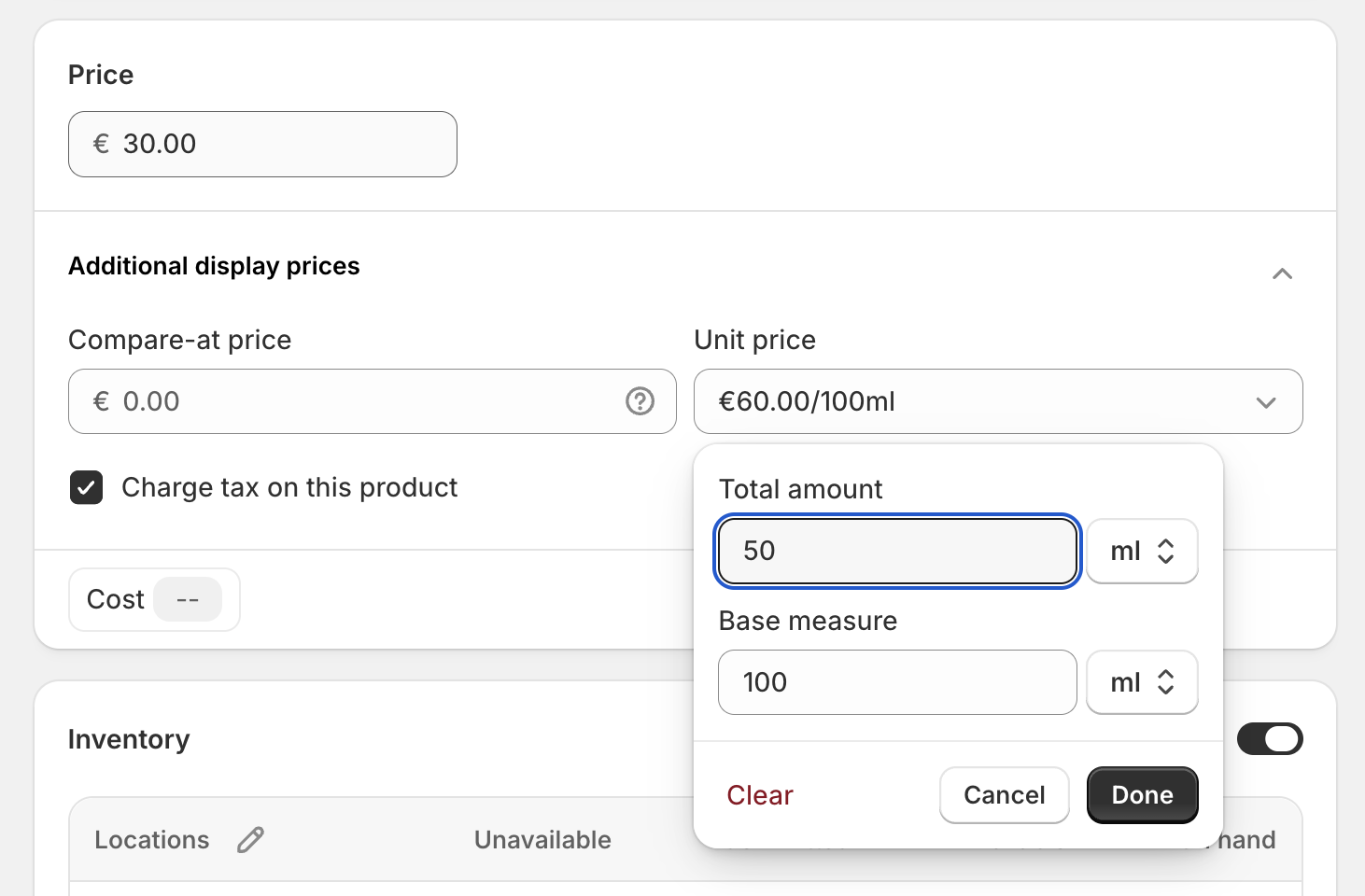
- Click Done, then Save.
- If you need to update or remove the unit price, you can do this directly in the Pricing section as well.
How to update product unit prices in bulk
If you need to update unit prices for multiple products at once, Shopify allows you to do this in bulk using either the bulk editor or a product CSV import. Both options are available on desktop only.
-
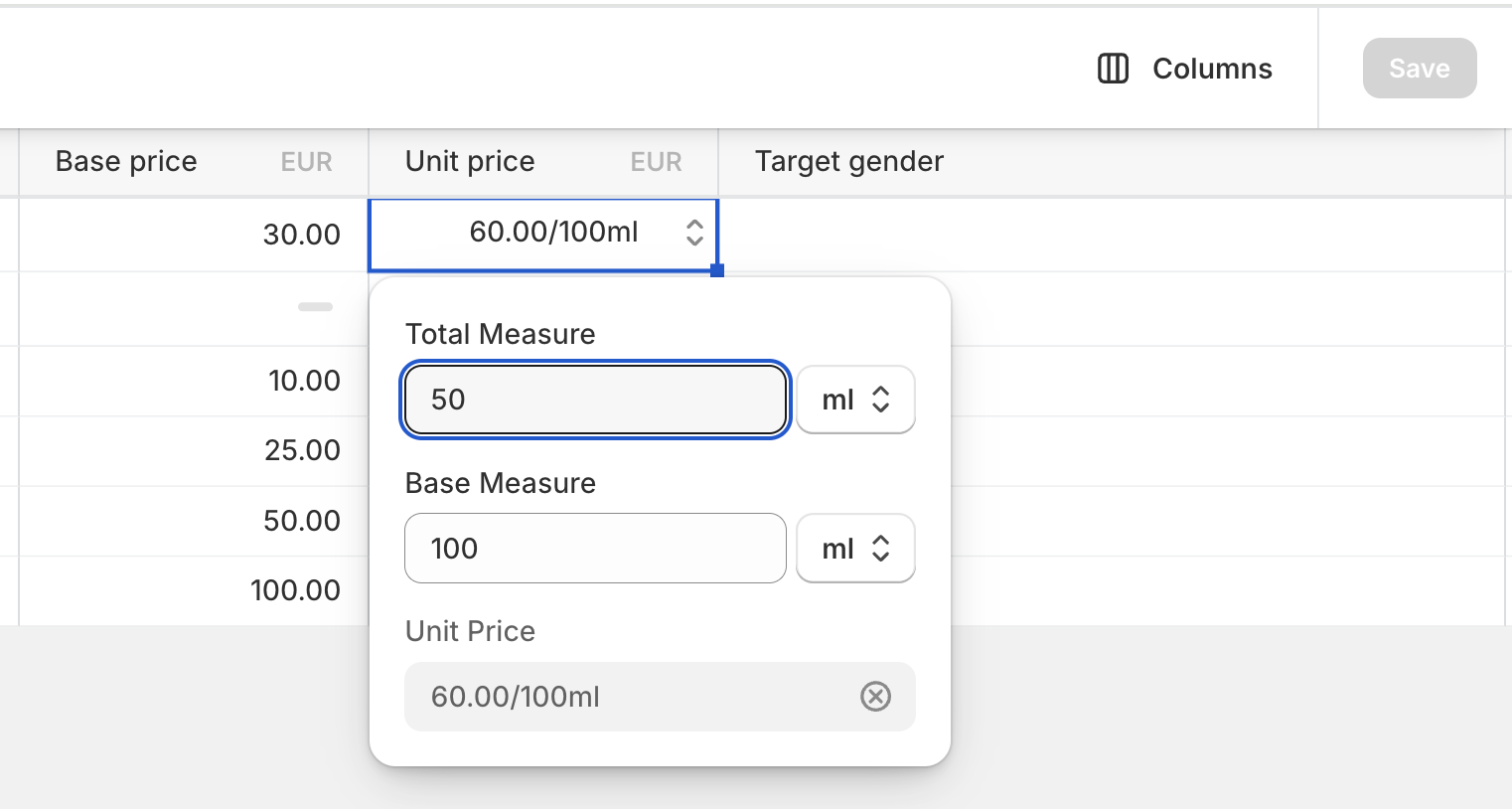
Using the bulk editor In the bulk editor, you first need to add the Unit price column. Once added, you can edit the unit price values directly in the table, including the total measure, base measure. This is a quick and convenient option when making changes to a smaller number of products.
-
Using a product CSV file For larger updates, you can use a product CSV file. To update unit prices, your CSV needs to include the following columns:
- Unit price total measure
- Unit price total measure unit
- Unit price base measure
- Unit price base measure unit
Shopify uses the values from these columns to automatically calculate and apply the unit price for each product or variant when the file is imported.
Both methods make it easy to keep unit pricing accurate and consistent across your store.
Note: If you’re planning to upload products using a CSV file, you might find this article helpful: 3 ways how to add products to Shopify.
How to display unit prices in your theme?
All online Store 2.0 themes already support unit prices, so you don’t need to do anything extra to show them. Once a product has a unit price, it will display automatically on product pages, collection pages, the cart, and checkout, and it’s visible to all markets.

If your theme doesn’t display unit prices the way you want, you may need to adjust the code or update the styling.
If you’re using a vintage theme that doesn’t support unit prices, you’ll need to customize the theme code to show them.
How to display unit prices in the order notifications?
By default, order confirmation notifications show unit prices. If you’ve added unit prices to your products but they don’t appear in your notifications, it’s likely because the template has been customized. Customizations can override the default template, so you may need to manually update it.
If you’ve previously added unit pricing code to your notifications, replace it with the updated code outlined below. The order-list__item-price class may appear multiple times in the template, so make sure to update every instance.
- From your Shopify admin, go to Settings > Notifications.
- In the Orders section, click Order confirmation.
- Click Edit code.
-
Add the snippet to the template within the
order-list__item-priceclass each time it appears.{% if line.unit_price_measurement %} <div class="order-list__unit-price"> {{- line.unit_price | unit_price_with_measurement: line.unit_price_measurement -}} </div> {% endif %} - Save your changes
And that’s it! As you can see, setting up unit prices for your products or product variants is very straightforward. If you run into any issues, don’t hesitate to get in touch with us.